


The Author’s Workshop
Best Obsidian Workspace Settings for Writers
Workspace customization is double-edged sword: Obsidian offers the extreme flexibility to match an author’s unique brain, but it also presents a significant risk of becoming a distraction from actual writing. I suggest a functional philosophy: writers should build what is needed, and then use it rather than spending hours on aesthetic tweaking.
Workspace customization in Obsidian involves several key areas:
1. User Interface (UI) Layout
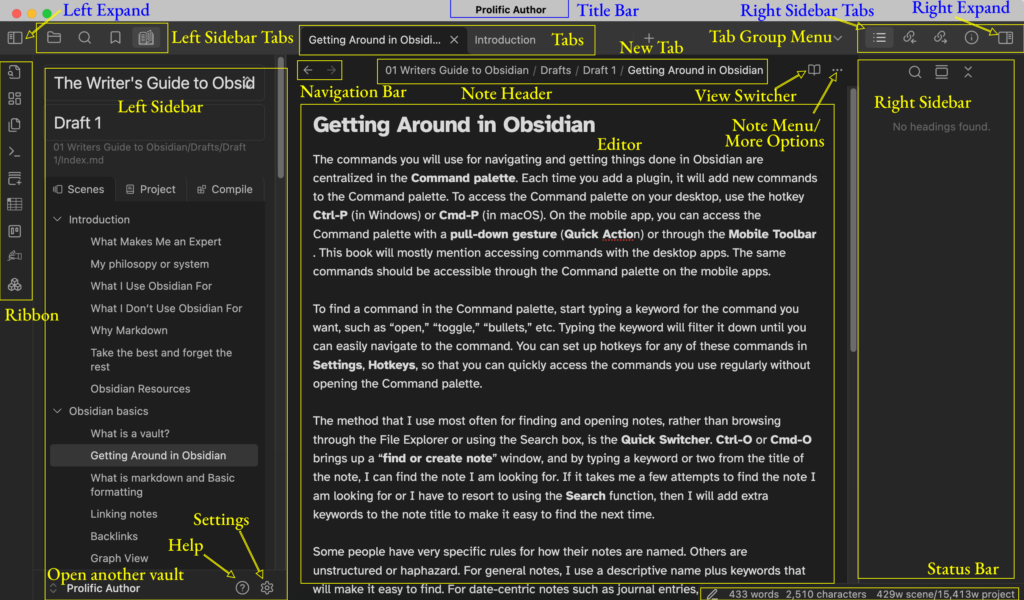
The Obsidian workspace is highly modular, allowing authors to arrange elements to suit their workflow:
• Sidebars and Panes: Both the left and right sidebars can be expanded, collapsed, or split to show multiple views at once. Tabs for plugins can be dragged between sidebars or rearranged within a single panel.
• Editor Splitting: The central editor can be split horizontally or vertically multiple times. This is useful for looking at research or a chapter summary while simultaneously drafting a scene.
• The Ribbon: This vertical bar contains buttons for frequent commands; these can be rearranged or added to by various plugins.
2. Writer-Specific Settings
Several settings can be tweaked to make your drafting environment more comfortable:
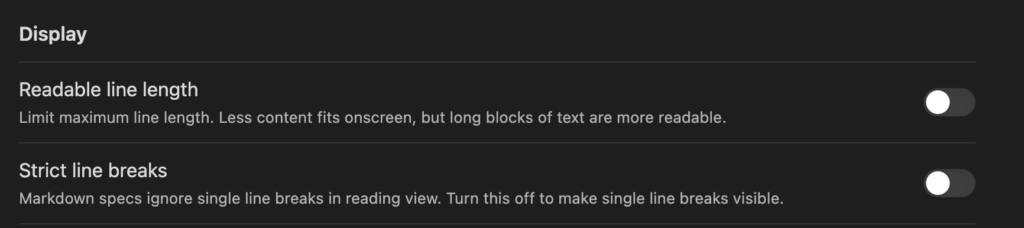
• Readable Line Length: Most authors toggle this off to remove the wide margins and use the full width of the screen.
• Strict Line Breaks: I discourage turning this on, as it breaks standard Markdown conventions, which require two hard returns between paragraphs for proper formatting.
• Auto-Pairing: I prefer to turn off the “auto-pair brackets and quotes” behavior to keep typing smooth.
3. Device-Specific Configurations
A sophisticated aspect of customization available is the ability to override configuration folders. This allows an author to have one setup for a desktop (with many plugins and a complex layout) and a separate, minimalist configuration for a mobile device or a different computer, ensuring the app starts quickly and fits smaller screens.
4. Visual Customization
For authors who find joy in a more beautiful workspace, several more functions are available:
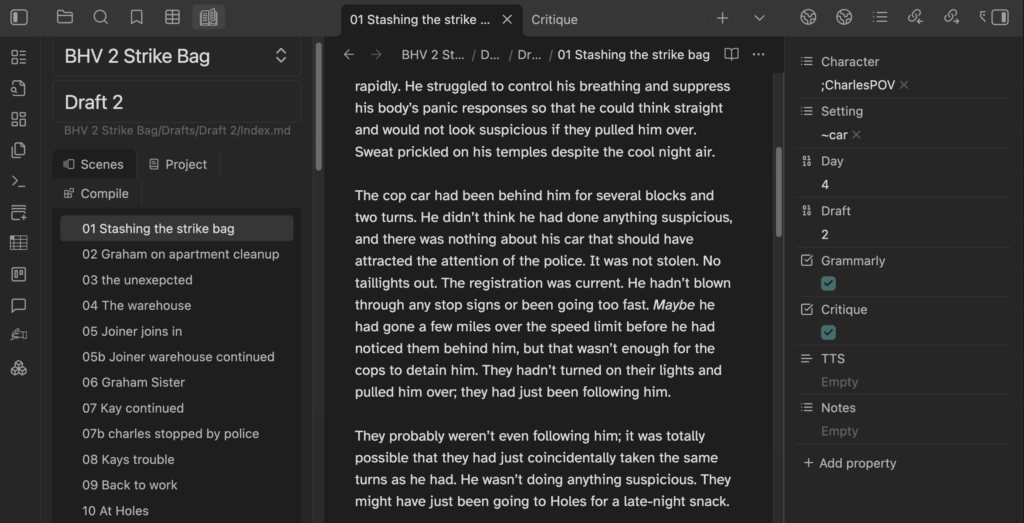
• Themes: These change the colors and shapes of the interface. While I use the default theme for simplicity, you may like specialized themes like Minimal for a clean look or Fancy a Story for specialized features like “clue” callouts.
• CSS Snippets: These allow for the most granular control, enabling changes to the title bar color (to differentiate between multiple open vaults), text selection colors, and paragraph spacing, and just about every visual aspect of your workspace.
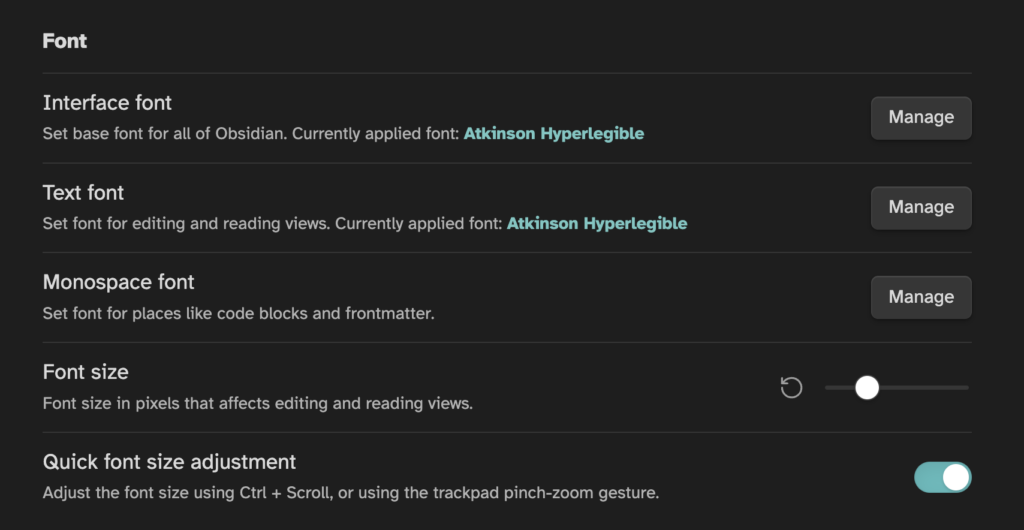
• Fonts and Zoom: Obsidian allows you to set separate fonts for the interface, the text editor, and code blocks. I recommend setting the Zoom level to the smallest comfortable setting to maximize sidebar information and then the Editor font size, keeping it large enough to prevent eye strain.
Check out these other articles:
- How to Write a Novel in Obsidian: Templates, Workflow, and Tools
- 5 Surprising Reasons to Write Novels in Plain Text
- Obsidian Callouts: Tips, Examples, and Scripts for Writers
- The Ultimate Writing Companion: Unveiling The Writer’s Guide To Obsidian
- Future-proof Your Files with Obsidian
- A Prolific Author’s System Writing in Obsidian
- What is an Obsidian Vault? | pdworkman.com
FAQs
- What is the best Obsidian layout for writers?
A simple layout with one drafting pane, optional research split view, and minimal sidebar clutter is usually best for sustained writing. - Should writers use Readable Line Length in Obsidian?
It depends on preference. Many writers turn it off for more screen width, while others keep it on for easier long-form readability. - Can I use different Obsidian settings on desktop and mobile?
Yes. You can use an override configuration folder to keep a fuller desktop setup and a lighter mobile setup. - Are Obsidian themes worth using for writing?
Themes can improve comfort and reduce eye strain, but excessive visual tweaking can become a distraction from drafting. - What are CSS snippets in Obsidian?
CSS snippets are small style files that let you customize appearance details such as colors, spacing, and panel styling. - How do I avoid over-customizing Obsidian?
Use a functional rule: only customize when it removes friction from writing, then stop and return to drafting.