Here is a free sample of The Writer’s Guide to Obsidian for your reading pleasure!
Chapter 1
Let’s get into the basics of using Obsidian. If you are a seasoned Obsidian user, feel free to skip ahead to MY WRITING PROCESS.
Why Markdown
In Obsidian, information is stored primarily in Markdown files. Markdown files are plain text, with basic formatting indicated by a handful of symbols or character sequences to allow easy conversion to HTML or other formats. Being plain text files, they are very small and not likely to become corrupted.
Writing one scene or one chapter per file also keeps them very lightweight, and they can be opened in an instant.
Since they are written in plain text, they are future-proof and can be edited with any text editor or word processor on any platform.
Plain text will never become obsolete.
What is a vault?
When you open Obsidian for the first time, it will prompt you to create a vault. An Obsidian vault is the system folder where your notes are stored. You can have as many vaults as you like, but for practical purposes, I suggest keeping it to the minimum number possible. If you already have note files saved on your hard drive, you can open the parent folder as a vault. Vaults can be managed at any time through the File → Open Vault menu item.
Unlike with many other note-taking apps, your files are not stored in a proprietary cloud, where a single corruption can take down your entire database. Instead, each file is an individual text file with a .MD extension, stored on your hard drive. You can navigate to them with your File Finder (MacOS) or File Explorer (Windows) or an alternative file browser. You can preview or edit them with any other text editor, Markdown editor, or word processor. If the company were to go belly-up tomorrow, you would still be able to access your notes.
Canvas and Base notes are slightly more complex. I suggest you export canvases to PNG to keep a human-readable copy for backup purposes.
Some authors choose to use one vault for all of their notes and some choose to have writing in a separate vault. When I initially switched to Obsidian, I had multiple vaults for personal, business, church, writing, etc., the same as I had set up separate notebooks in Evernote and OneNote. But I eventually merged all of my non-book notebooks into one vault, with subfolders for each of those roles, as it was simpler, and I might want to make connections between notes in my personal role and notes in my church role or other areas of my life.
As far as writing goes, I keep each book series or world in a separate vault. I do not want to mix the series wikis (bibles or world-building docs) with each other. More about this will be discussed in the chapter SET UP FOLDERS.
Obsidian users follow many different philosophies or knowledge management systems for organizing their notes. You can choose to use a method espoused by others, such as Zettelkasten, Johnny Decimal, or PARA, or you can make your own system, or mix and match features of each. You can choose a flat, folderless system and rely on tagging, Properties, or links to provide category structures, or you can use a hierarchical folder structure. You can mix folders with tags, Properties, and links. Obsidian’s organizational structure is very flexible.
I use primarily a hierarchical folder structure, as you will see in SET UP FOLDERS. Folders are the only organizational structure that persists across all platforms at a system level. They can be seen by all file management tools and apps that can see your hard drive file system.
If you are switching to Obsidian from another notes program, you probably have an idea of how you want your vault to be set up. If you are just starting with Obsidian for general note keeping, I suggest you begin with a very minimal system and adapt as you discover your needs. For writing, I have shared my folder hierarchy with you in SET UP FOLDERS. You can adapt it to your workflow and preferences over time.
The best thing to do is just jump in! Set up your first vault and start experimenting.
Getting Around in Obsidian
The User Interface
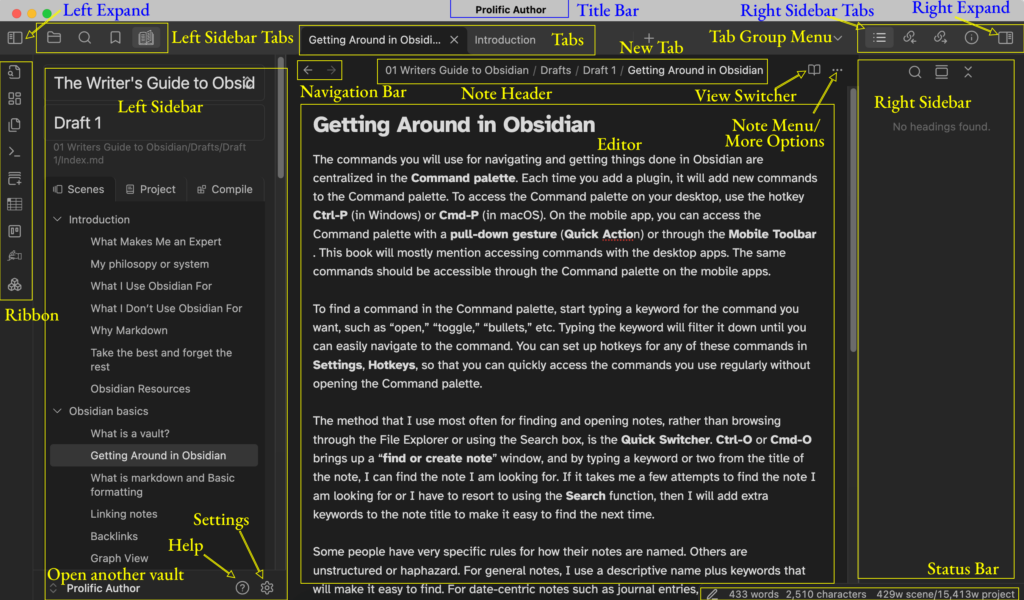
The picture above shows the various elements of the Obsidian UI to give us a common vocabulary for talking about them. Some of the elements are referred to by multiple names, and there is sometimes confusion as to the name assigned to each one. It took me some time to find the “official” names of each element so that we don’t have to refer to “the down arrow thingy” or “the three-dot menu” (also known as a kebab.) I have used the names used in the Obsidian user documentation, developer documentation, and occasionally CSS element names, to keep usage consistent.
Sidebar Tabs
The left and right sidebar tabs open different panes (also known as views) in their respective sidebars. The elements on the left sidebar tabs shown above are File Explorer (also known as Navigation), Search, Bookmarks, and the Longform plugin. Other plugin tabs may appear here or can be dragged here. Tabs and panes for plugins can be dragged from one sidebar to the other. You can also drag a tab downward within a sidebar until a divider appears about three-quarters of the way down in order to split the sidebar and show two panes at once. The horizontal and vertical dividers can be adjusted after splitting. You can see some of the configurations I have used in TWEAKING YOUR WORKSPACE.
The plugins on the right sidebar tabs shown above are Outline, Backlinks, Outgoing Links, and Properties (specifically, the File Properties pane.) For more information on plugins, see PLUGINS.
Ribbon
The ribbon contains buttons for frequently-used commands. The first few tabs on the ribbon shown in the screenshot are Open Quick Switcher, Create New Canvas, Insert Template, and Open Command Palette. Other tabs may be added by different plugins, and the tabs can be dragged into different positions on the ribbon or sidebars and between the ribbon and sidebars. You can even drag file tabs from the editor area into the ribbon and sidebars. Try pinning tabs of map of content files to use them as navigational aids.
Editor
The editor itself can also be split horizontally or vertically multiple times through Note Menu/More Options.
The Command Palette
The commands you will use for navigating and getting things done in Obsidian are centralized in the Command palette. Each time you add a plugin, it will add new commands to the Command palette. To access the Command palette on your desktop, use the hotkey Ctrl+P (in Windows) or Cmd+P (in macOS). On the mobile app, you can access the Command palette with a pull-down gesture (if the Quick Action has been assigned to the Command palette) or through the Mobile Toolbar. This book will mostly mention accessing commands with the desktop apps. The same commands are accessible through the Command palette on the mobile apps. The left and right sidebars can be accessed in the mobile app with a right and left swipe.
As you add plugins, they add more commands to the Command palette. To find a command in the Command palette, start typing a keyword for the command you want, such as “open,” “toggle,” “bullets,” etc. Typing the keyword will filter it down until you can easily navigate to the command. You can set up hotkeys for any of these commands in Settings → Hotkeys, so that you can quickly access the commands you use regularly without opening the Command palette.
Quick Switcher — Finding and Opening Files
The method that I use most often for finding and opening notes, rather than browsing through the File Explorer or using the Search box, is the Quick Switcher. Ctrl+O or Cmd+O brings up a Find or create a note window, and by typing a keyword or two from the title of the note (frequently just a few letters), I can find the note I am looking for. If it takes me a few attempts to find the note I am looking for or I have to resort to using the Search command, then I will add extra keywords to the note title once I find it, to make it easier to find on the first attempt the next time.
Some people have very specific rules for how their notes are named. Others are unstructured or haphazard. For general notes, I use a descriptive name plus keywords that will make it easy to find. For date-centric notes such as journal entries, minutes of meetings, etc., I use the ISO standard date format (yyyy-mm-dd) followed by the descriptive name and keywords. This allows me to list notes chronologically by sorting on the filename or to search for a note by date. In my main vault, I also create a link to any date-named notes in the appropriate daily note, so that I can also find date-centric notes by clicking on the calendar in the sidebar created by the Calendar plugin by Liam Cain. For more information on plugins, see PLUGINS.
The naming of my book’s chapters is discussed in FILE NAMES.
More
You can find more information about the Obsidian interface and other information about getting started at help.obsidian.md. More information about customizing your Obsidian interface can be found under TWEAKING YOUR WORKSPACE.
I hope you enjoyed this sample of
The Writer’s Guide to Obsidian
By P.D. Workman